I recently learned about site search shortcuts in browsers
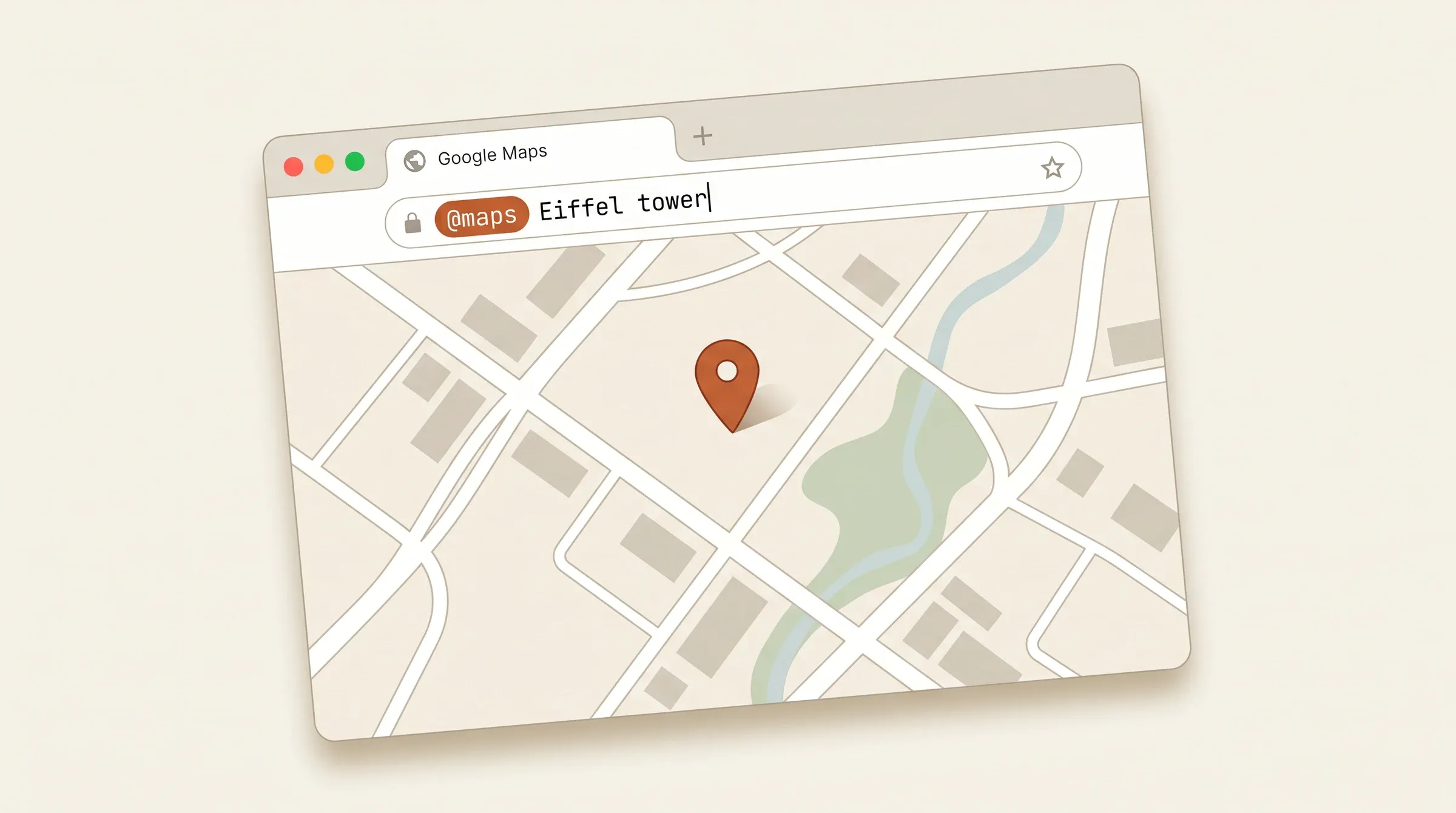
Most browsers let you assign a keyword to any site's search. Type the keyword in the address bar, then your query, and you go straight to the site's results.
Short one. I’ve been using browsers daily for 20+ years and somehow only just found out about this. It might be common knowledge, but when I asked around in my circles, most people didn’t know about it either. Which is why I’m sharing it here. Perhaps it helps you.
What it does
In my address bar I can type @maps Eiffel tower and it would lead me to Google Maps on, you guessed it, the Eiffel Tower. Or @drive million dollar idea and it would land me right on the doc where I’m cooking up exactly that. (No, you can’t see it.) Now you might not use Google Maps or Drive a lot, but there are plenty of other uses. Searching PRs on GitHub, looking up videos on YouTube, hunting for stuff on Amazon. You get the idea. Anything with a search box, basically.
How to set one up
For Brave (and any other Chromium based browser, like Chrome or Edge), it lives in the search settings. You can dig through the menus, or paste brave://settings/searchEngines straight into the address bar to skip the clicking. Chrome and Edge use the same path with their own protocol prefix (chrome:// and edge://). Scroll to “Site search” and hit “Add”. You give it a name (whatever helps you remember it), a shortcut (the bit you’ll actually type in the address bar, like @maps or @drive), and the search URL with %s where your query should go.
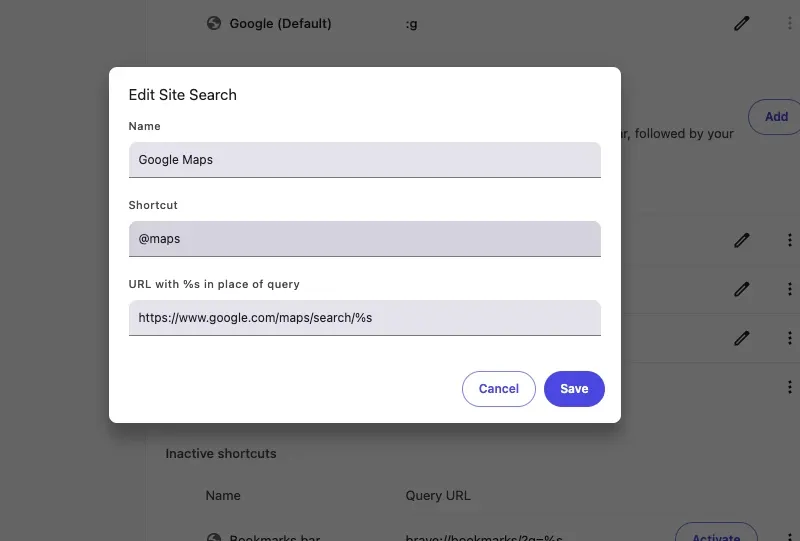
To find that search URL, just go to the site, run any search, and copy the URL of the results page. Then replace whatever you searched for with %s and you’re done.
Save the entry, type the shortcut in the address bar, hit space (or Tab), and start searching.
To save you the trouble, a few I’ve ended up using:
- Google Maps:
https://www.google.com/maps/search/%s - Google Drive:
https://drive.google.com/drive/search?q=%s - Amazon:
https://www.amazon.com/s?k=%s - GitHub PRs:
https://github.com/search?q=%s&type=pullrequests - YouTube:
https://www.youtube.com/results?search_query=%s
Firefox does it differently. You set a keyword on a bookmark that points to a search URL. Different mechanic, same idea. Safari is the limited one. As far as I’m aware, you’d need an extension to get the exact same behaviour, but don’t quote me on that.
What I use it for
My work recently shifted a bit. I’m now looking up addresses on Google Maps multiple times a day, which is how I stumbled into this in the first place. I was hunting for a quicker way to search Maps, found this, and realised the same trick worked nearly everywhere else. So I set it up for Drive too. Then my GitHub PRs, then the Godot forum, then a handful of other places. Now I reach for it a dozen times a day without thinking.
Closing
Tiny thing, but it stuck. If you didn’t know about it either, it’s worth setting up. Took me 20+ years to find out. Hopefully it’ll only take you half a minute.